Get a load of Excel’s new multi-value cells
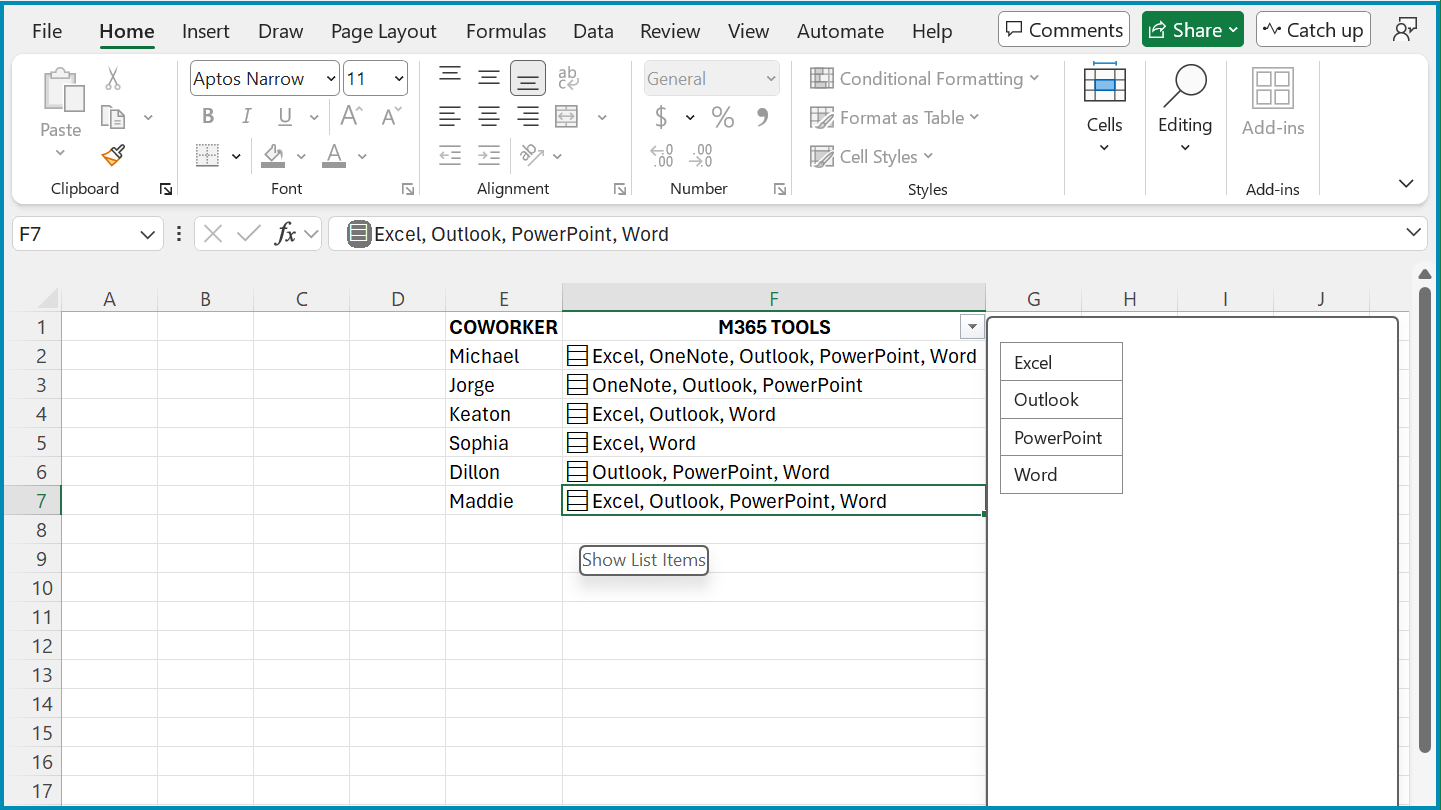
Until now, Microsoft Excel has followed a strict structural rule: each cell on a worksheet can hold only a single scalar value. While you can string together text using commas or write dynamic array formulas to spill values across adjacent rows and columns, the cell itself remains a single-item container.
But Excel has evolved. A feature currently in preview lets you store multiple distinct, structured values within a single cell.
Three new data structures can now be put inside a cell:
- A list maintains a sequence of independent values arranged in a single column. Unlike a plain text string separated by commas, an in-cell list treats each entry as a distinct data element. A list cell can hold a mix of text, numbers, dates, and Boolean values while preserving the native data type of each item.
- An array stores a grid of rows and columns inside one cell.
- A nested array allows formulas to generate and return arrays inside other arrays. This allows complex outputs to be confined within individual cells instead of trying to spill them across adjacent worksheet rows and columns.
These in-cell data structures can simplify complex formula processing and reduce clutter on the worksheet.
Availability: These in-cell data structures are available in Excel for Windows and Mac to members of the Microsoft 365 Insider program who are on the Beta Channel. Microsoft has not yet said when the features will begin rolling out to all M365 subscribers, and they are not supported in perpetual license versions (such as Office 2021 or Office 2024) or Excel for the web.
Use cases
Here are examples of how these three in-cell structures can be used.
Multi-item categorizing
Imagine categorizing your co-workers, who each have expertise in using up to five M365 software tools: Excel, OneNote, Outlook, PowerPoint, and Word. Or they specialize in selling any number of categories of products.
To store this information on a spreadsheet, you could designate a column for each software tool or product category. This of course can take up a lot of columns on the spreadsheet, especially if you have additional columns containing more information about each person.
Instead, with an in-cell list, you can store all this information in one column. Excel will recognize each list item individually.
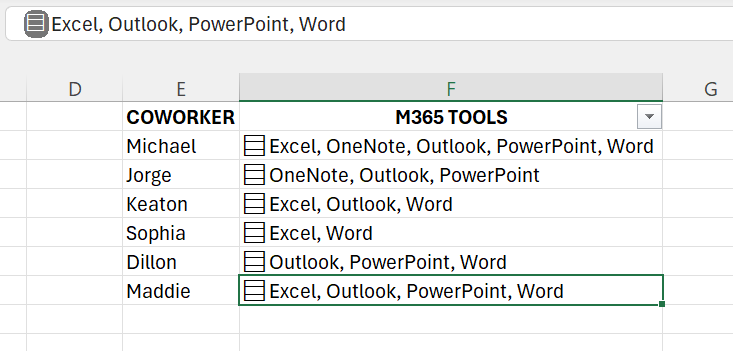
These in-cell lists eliminate the need for multiple columns.
Howard Wen / Foundry
This allows you to filter for one or a combination of these items by clicking the drop-down arrow at the top of the column containing the in-cell list.
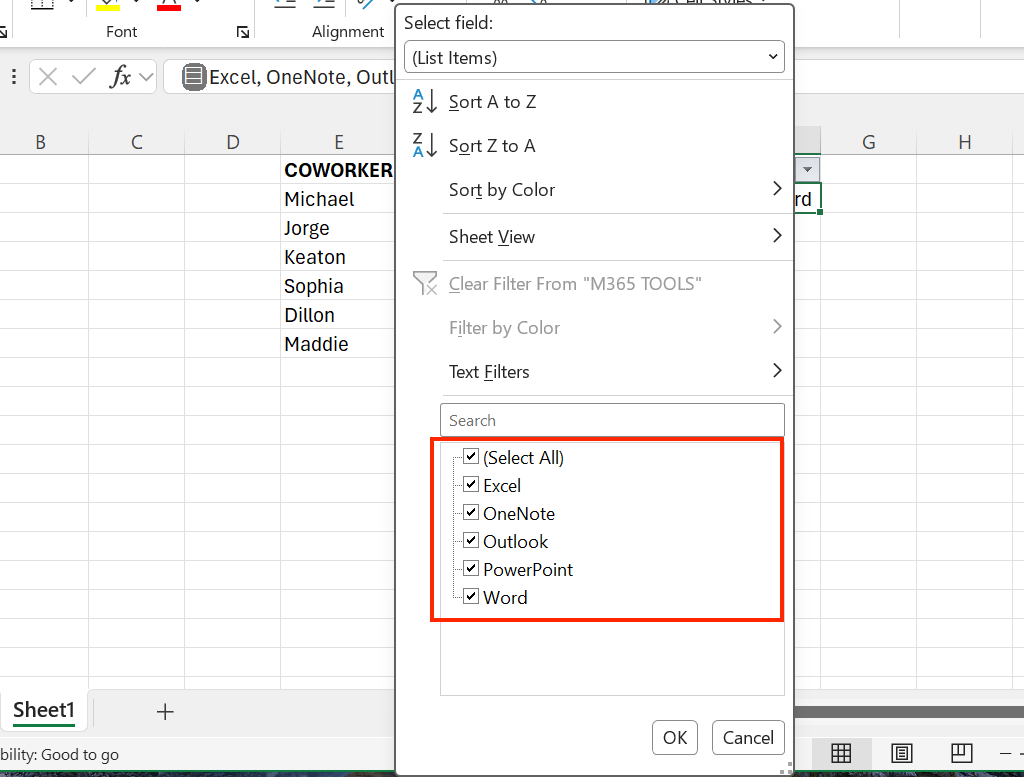
Because Excel recognizes each item in an in-cell list individually, you can filter the results by the individual items.
Howard Wen / Foundry
Survey responses contained
Say your co-workers or customers are filling out a survey where they rate questions on a numerical scale. Instead of allocating separate columns for each survey question per person, you can store all responses within a single designated cell per respondent. This helps keep the rest of the spreadsheet look cleaner, especially if you’ve designed it with other columns to store additional data about each person.
Mitigating #SPILL! errors
When using array-processing functions like TEXTSPLIT across an entire column, standard dynamic arrays attempt to spill output values sideways across multiple columns for every row simultaneously. If any blocking data exists in adjacent cells, Excel triggers a #SPILL! error.
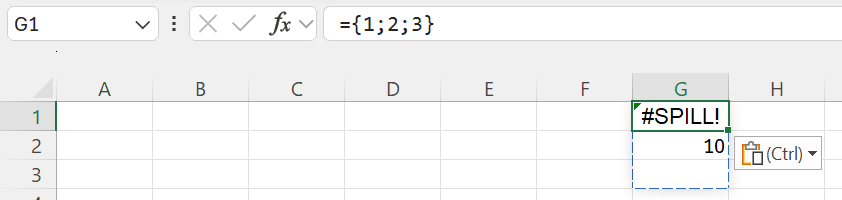
The array in cell G1 is trying to spill into cell G2, which already has a value.
Howard Wen / Foundry
Instead, Excel can pack the split outputs inside each respective row’s cell as a nested array. This produces a single-column result that holds all detailed split values internally without spilling across adjacent grid cells or causing formula collisions.
The array is now contained in a single cell, eliminating the spill error.
Howard Wen / Foundry
How to insert and edit in-cell structures
You can create and interact with in-cell data structures using manual shortcuts or dynamic formulas:
- List: Select a cell and press Ctrl + J to open the in-cell list editor, or navigate to Insert > List on the ribbon toolbar. Then type or paste items separated by commas or line breaks.
- Array: You can create an array using curly braces {} and semicolons or commas. For example, ={1;2;3} creates a standard array that spills across cells. Wrapping it in a second set of braces as in ={{1;2;3}} keeps it contained in a single cell. Likewise, wrapping a formula like =TEXTSPLIT(B3,, “, “) in extra braces as in ={TEXTSPLIT(B3,, “, “)} will contain the entire resulting array inside a 1×1 container in the cell, suppressing spilling.
- Nested Array: You can create nested arrays by enclosing multiple arrays within curly braces, such as ={{1,2,3};{4,5,6}}. This builds more complex data structures with multiple rows and columns.
Unpacking and referencing: When standard formulas reference an in-cell structure directly (for example, =B6 where cell B6 contains a list or array), Excel spills the internal array into adjacent cells on the worksheet grid. To extract specific elements without spilling, use array manipulation functions like INDEX or field access operators.
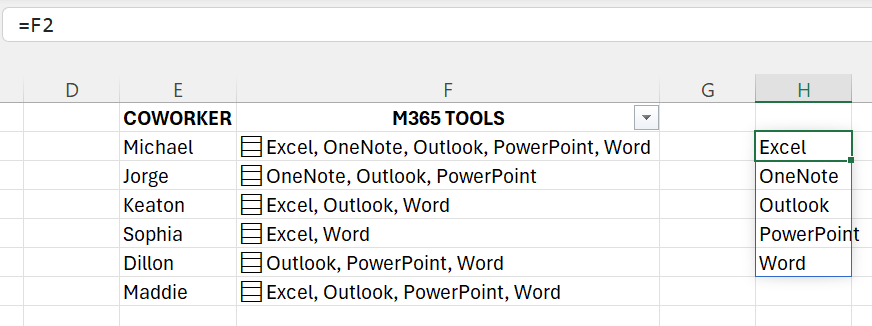
Typing =F2 in cell H2 references all the individual items in cell F2.
Howard Wen / Foundry
Caveats, new functions, and tips
Things consider when using these new in-cell data structures:
- Reduced visual transparency: Traditional spreadsheet grids display all data directly, which makes them efficient to analyze. Implementing these structures inside cells requires users to interact with them in order to view full details, which can slow auditing.
- Performance, storage, and memory: Memory consumption of in-cell arrays is somewhat higher and calculation performance can be slower compared to storing single-value data.
- Backward compatibility: A worksheet that contains these new in-cell structures will show formula errors when opened in older desktop, perpetual license, or other unsupported versions of Excel.
- Collaboration: To prevent confusion, make sure anyone collaborating on a worksheet knows that you’ve implemented in-cell lists or arrays in it, especially if they are likely to encounter compatibility issues with their version of Excel.
- Compatibility Version 3 and new functions: Compatibility Version 3 is required for most calculations involving nested arrays. (Set via Formulas > Calculation Options.) Additionally, four new functions have been added for array evaluation: FLATTEN unpacks nested arrays into grid rows/columns, and HAS, HASANY, and HASALL check whether specific values exist within an array.
- Legacy function limitations: Traditional aggregation and lookup functions like SUMIF, COUNTIF, and VLOOKUP may not inspect or evaluate values stored inside multi-value cells without array-handling wrappers or modern replacement functions such as XLOOKUP or BYROW.
Finally, because these features are in preview, Microsoft warns that their behavior may change based on feedback from M365 Insiders before general release.