How to Register a Winbox Account in Malaysia: Complete Beginner’s Guide
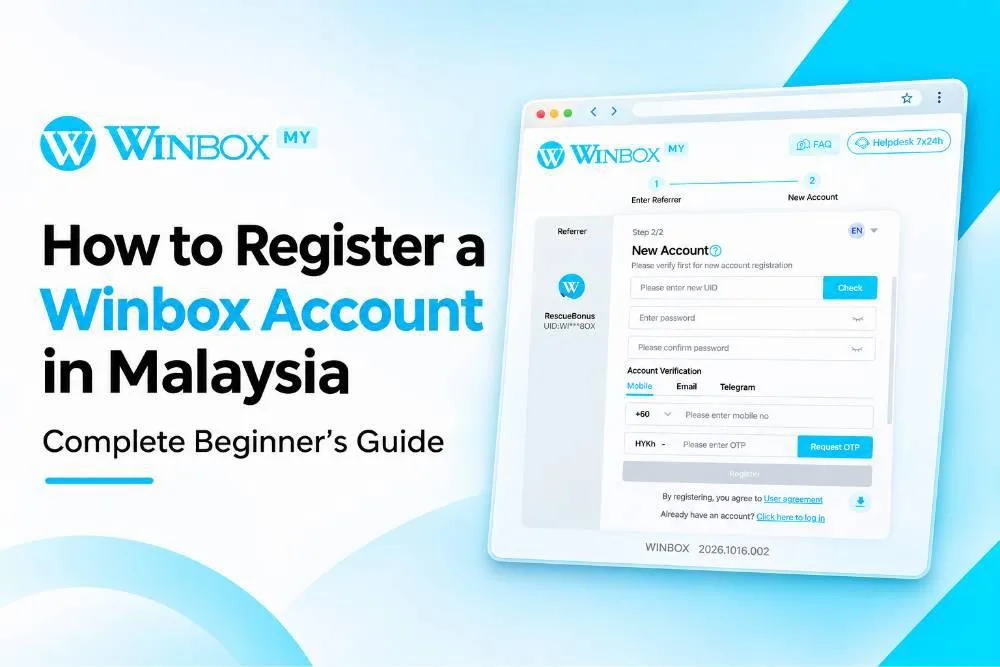
Registering a Winbox account for the first time? Don’t worry, the process is quite straightforward once you know where to start. For starters:
-
You’ll need to create your Winbox User ID (UID)
-
Set a password
-
Verify your mobile number or email address
Depending on which version you’re using, the order of these steps might be slightly different.
We’ve put together this simple Winbox registration guide for Malaysian users, covering everything from setting up your account to fixing common problems like OTP codes not arriving or usernames being rejected.
What Do You Need Before Registering for Winbox?
Before you start, it’s worth getting a few things ready. That way, you won’t have to stop halfway through registration just to look for your details.
What You Need
Why It Matters
Malaysian mobile number or email
To receive OTP codes and account notifications
Winbox UID
Your chosen username for logging in
Strong password
To keep your account protected
Stable internet connection
To avoid interruptions during registration
Smartphone or computer
To access the Winbox registration page
You don’t need anything fancy, just make sure you can access your mobile number or email, especially when it’s time to verify your account.
Also, check that you meet the platform’s age and eligibility requirements before signing up.
How Do You Register a Winbox Account Step by Step?
New to Winbox? Let’s go through the registration process together.
One thing to note: the Winbox register page may look slightly different depending on whether you’re using the website or mobile app. Some versions ask you to verify your phone number first, while others let you create your UID before requesting verification.
Either way, these are the main steps you’ll come across.
Step 1: Open the Winbox Registration Page
First things first, open the Winbox website or app using a source you’ve verified.
Once you’re on the homepage or login screen, look for a button that says Register, Sign Up, New User Registration or Register New UID.
Tap or click it to open the registration form.
Pretty simple so far, right?
Just be careful when searching for Winbox online. There may be websites with similar names, so always double-check the URL before entering any personal details.
This one is the correct one!
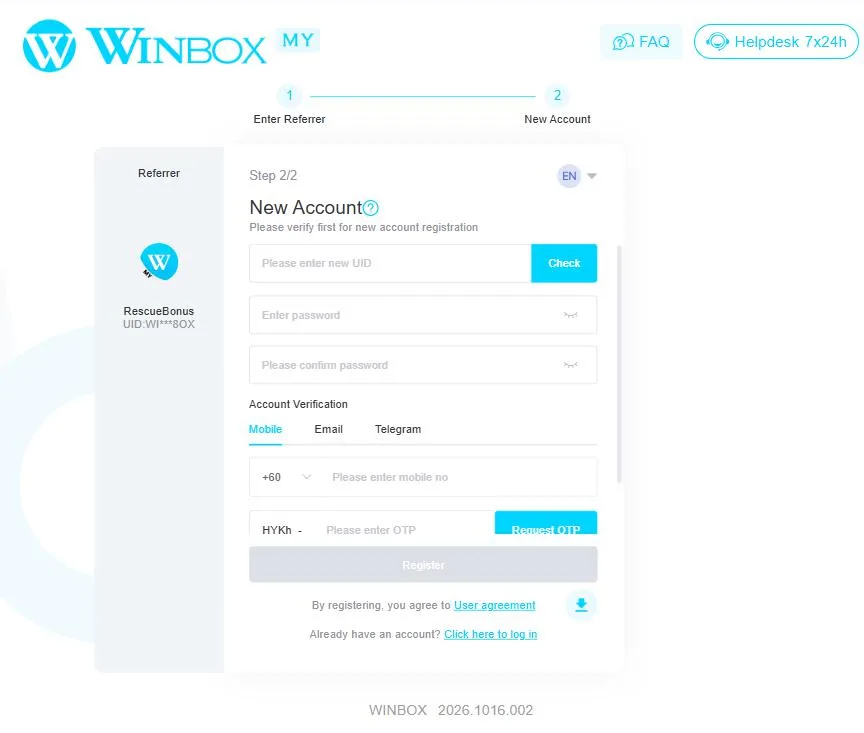
Register Window looks kinda like this 👆
Step 2: Create Your Winbox UID
Next, you’ll need to choose your Winbox UID.
Your UID is basically your account username. It’s what you’ll normally use to log in, and you need it when contacting customer support.
Some Winbox registration versions require your UID to:
-
Contain between 6 and 15 characters.
-
Start with a letter.
-
Follow the platform’s username rules.
-
Be unique and not already taken by another user.
For example, you could try something like KokMingMY88 or KLPlayer5688.
Again, these are just examples, so there’s no guarantee they’ll be available.
A little tip: Choose something easy to remember, but avoid using your IC number, full name or other sensitive personal information.
Once you’ve entered your preferred UID, move on to setting your password.
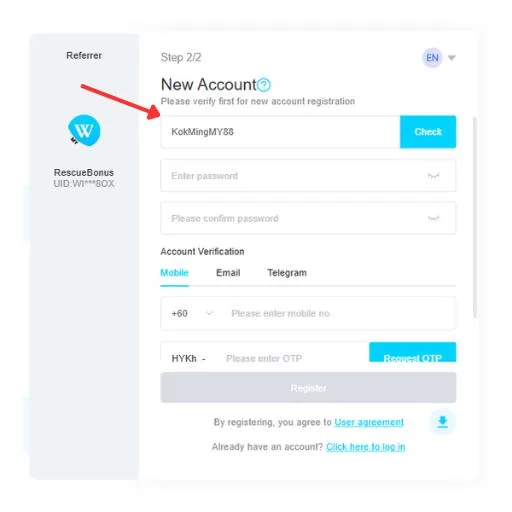
Name can be anything tbh
Step 3: Set Up Your Winbox Password
Now comes the part you definitely shouldn’t rush: choosing your password.
We know it’s tempting to use something simple like your birthday, employee ID or 123456.
But those are also some of the easiest passwords for someone else to guess, so don’t do that. A better approach is to create a password that’s unique to your Winbox account.
Try to:
-
Use a longer combination of letters and numbers, where allowed.
-
Avoid your birthday, phone number or IC number.
-
Avoid reusing your email or online banking password.
-
Store your password securely so you won’t forget it.
If you’re asked to confirm your password, type it again carefully.
Trust us, spending an extra few seconds here can save you a lot of trouble later. You can do something like this!
[Random Word] + [Random Word] + [Numbers] + [Special Characters]
For example (DO NOT USE THESE):
-
MangoRiver47!Cloud
-
Crouchingmaggi162=Oren
-
Skyfire8739=pIlU1
Make sure the password is the same yeah?
Step 4: Enter Your Mobile Number or Email
Depending on the registration method, Winbox may ask you to link your mobile number or email address.
For Malaysian users, this could be your usual mobile number or an email account you regularly check.
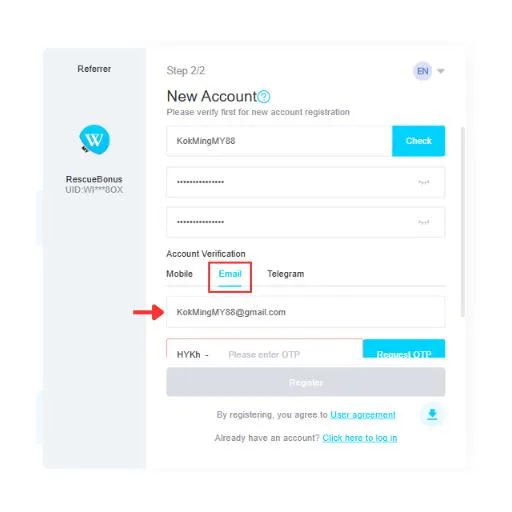
Either one is okay, just make sure its accurate 👍
Make sure you enter the correct details because this is where your verification code may be sent.
Before moving on, double-check:
-
Your mobile number is entered correctly.
-
Your email address has no spelling mistakes.
-
You can receive SMS messages or emails.
-
You’re using contact details that belong to you.
One wrong digit is enough to stop your OTP from arriving.
And honestly, nobody wants to spend ten minutes waiting for a code that was sent to the wrong number.
Step 5: Request and Enter Your OTP
Almost there! After entering your contact details, you may need to complete OTP verification.
OTP stands for One-Time Password, which is a temporary code sent to your registered phone number or email.
Here’s what you need to do:
-
Tap Request OTP or the equivalent verification button.
-
Check your SMS messages or email inbox.
-
Enter the code you received.
-
Tap Next or Verify to continue.
Some Winbox registration versions use a six-digit OTP.
If you’re using SMS verification, make sure your phone has a decent signal. If you’re using email, remember to check your spam or junk folder too.
Important: Never share your OTP with anyone, even if they claim to be from Winbox customer support.
Step 6: Complete Your Winbox Registration
And that’s pretty much it!
Once your UID, password and verification details have been accepted, you should see a confirmation message or be taken to your account.
Before closing the page, take a moment to check that everything went through properly.
Make sure:
-
Your UID was successfully created.
-
Your password was accepted.
-
Your mobile number or email was verified, if required.
-
Your account is ready to access.
If the page seems stuck or you don’t receive a confirmation, don’t keep pressing the registration button repeatedly.
Give it a moment, then check whether your account has already been created.
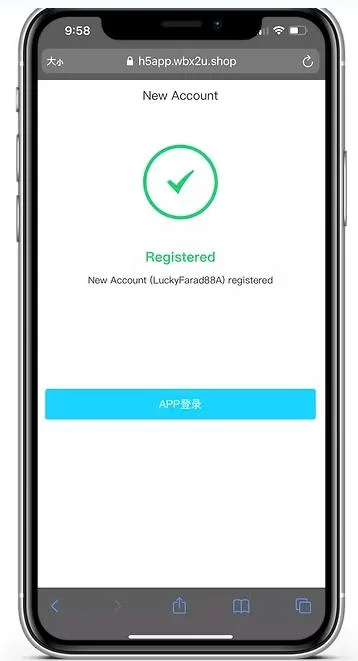
Congrats, you have successfully registered!
What Should You Do After Registering for Winbox?
Managed to register successfully? Nice! Before exploring the platform, there are a few small things worth sorting out.
Double-Check Your Account Details
Make sure your mobile number and email address are correct.
You might not think much about it now, but these details can become important if you forget your password or need to recover your account later.
Check Your Account Security Settings
Take a look at the available security options.
If additional authentication or account recovery features are offered, consider setting them up. It’s always easier to protect your account from the beginning than to deal with access problems later.
Get Familiar With Winbox Login
Once your registration is complete, you can use your UID and password to access your account through a supported login method.
Remember, your UID is different from your password. You’ll generally need both when signing in.
Why Is Your Winbox Registration Not Working?
Ever filled in an online form, pressed Submit and suddenly got an error message? Well our registration has that too, the good news it’s easy to bypass it.
Problem
What You Can Do
UID already taken
Try another username
OTP not arriving
Check your phone number, email and network connection
Invalid OTP
Request a fresh code and enter the latest one
Password not accepted
Check the password requirements shown on the form
Phone number already registered
Try recovering your existing account
Registration page won’t load
Check your internet connection or try another browser
Cannot submit the form
Look for missing information or highlighted errors
If none of these solutions work, contact customer support through a verified channel.
“Never give your password or OTP to someone offering to register an account on your behalf.”
Register Your Winbox Account Today
Registering a Winbox account shouldn’t be too complicated, especially when you know what to prepare beforehand.
For most users, it’s simply a matter of creating a UID, setting a password, entering your contact details and completing OTP verification.
The main thing is to take your time and double-check everything before submitting the form. After all, nobody wants to go through the whole registration process again because of one wrong digit!
Well, now that you know how it works, why not head over to our Winbox register page and put what you’ve learnt into practice?
Just remember to keep your login details private, use a strong password and make sure you meet the platform’s eligibility requirements before signing up.
A little extra care today can save you plenty of headaches later!
Frequently Asked Questions About Winbox Registration
Is Winbox Registration Free?
Creating a Winbox account is generally separate from making deposits or using paid services. However, you should always check the current registration terms for any applicable conditions or charges.
What Is a Winbox UID?
Your Winbox UID is basically your account username. You’ll normally use it to log in and identify your account when contacting customer support. Choose something memorable, but avoid including sensitive personal information.
Why Am I Not Receiving My Winbox Registration OTP?
First, double-check your mobile number or email address. If everything looks correct, check your phone signal, SMS messages or spam folder. Give it a little time before requesting another code.
Can I Register for Winbox Using My Phone?
Yes, some Winbox versions support registration through mobile browsers or apps. The process is generally similar to registering on a computer, although the screen layout and available options may differ.
Can I Change My Winbox UID After Registration?
That depends on the account rules. Some platforms don’t allow users to change their UID once it’s created, so it’s best to choose carefully. Check your account settings or contact verified support for confirmation.
What If My Phone Number Is Already Registered?
You may have registered an account using that number previously. Instead of creating another account, try the available recovery options or contact verified customer support to check your account status.
The post How to Register a Winbox Account in Malaysia: Complete Beginner’s Guide appeared first on PlayStation Universe.