How To Use Photo Mode In GTA 6

You’re going to experience countless memorable moments in Grand Theft Auto 6. Maybe you’d like to marvel at your surroundings after parachuting off skyscrapers or gawk at brutal collisions during high-speed chases. Then again, perhaps you’d prefer recounting all the hilarity that ensues as you explore Leonida. Well, you can take a snapshot of these instances via GTA 6’s Photo Mode.
In This ArticleThe Photo Studio in GTA 6
Photo Mode, known in-game as Photo Studio, is readily available early in the campaign. Simply pause the game and select the Photo Studio option or press the corresponding button on your controller--Square for PlayStation and X for Xbox.
Note: You can still activate Photo Studio during cutscenes, though the functions are limited.
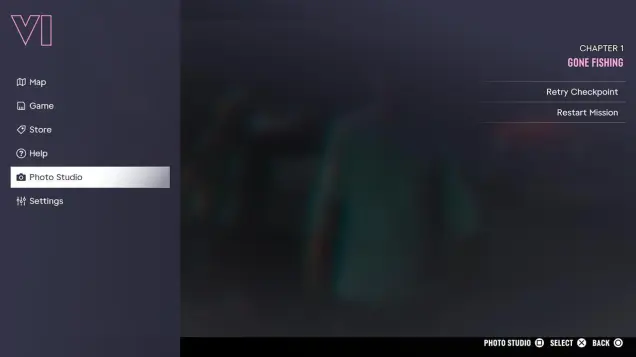
Useful tabs and functions
Photo Mode in GTA 6 has several tabs with an assortment of functions. Here’s a quick rundown:
- Camera - Lets you rotate and zoom-in/zoom-out. You can also disable depth-of-field and turn your character invisible.
- Effects - Allows you to tweak exposure, contrast, tint, bloom, and more.
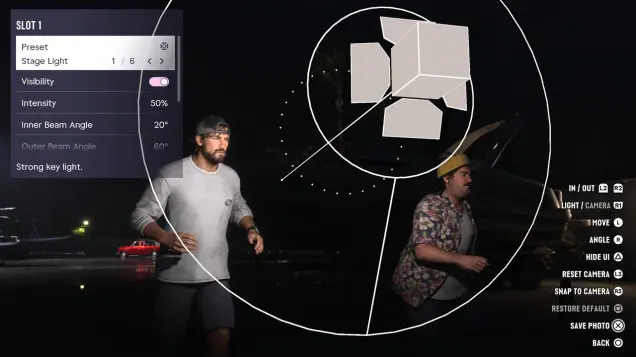
- Lightning - You can place several light sources to brighten up your surroundings or fixtures. Presets include stage lights, camera flashes, and others. It’s also possible to increase the intensity and range of each light.
- Vehicle - Toggles various lights for your vehicle.
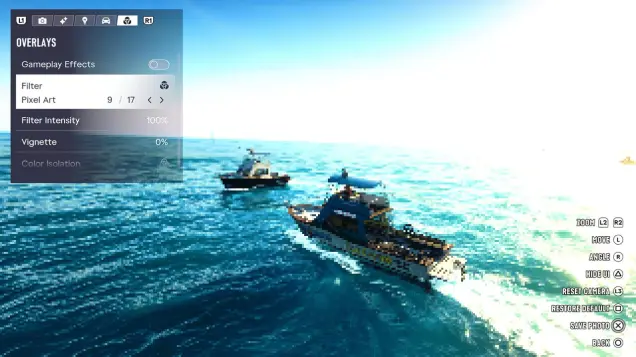
- Overlay - This tab has options for the vignette and filter intensity. Notable options include:
- Cartoon Universe - A slightly cell-shaded effect.
- Found Footage - A grainy and glitchy backdrop reminiscent of found footage flicks.
- Pixel Art - A rather cool pick that gives the picture a retro, 8-bit feel.
Note: Once you’re done making the necessary tweaks, press the Hide UI button (Triangle or Y) to take a clean picture/screenshot.
Why not take a selfie, too?
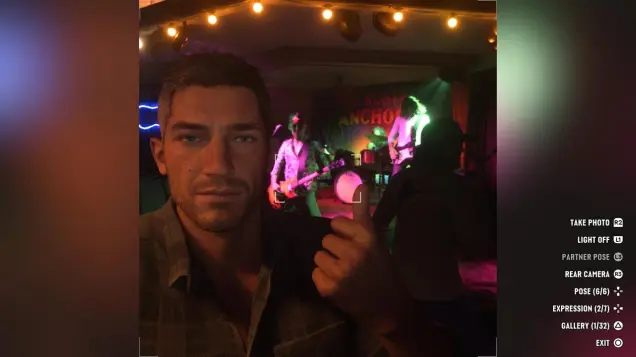
Aside from the Photo Studio feature, you can also use your phone to take pictures. You can do this via the Camera app, and you can take selfies, too. The app even allows you to change your character’s pose and facial expression.
Note: If you have your partner with you--i.e. Lucia while playing as Jason, and vice versa--you may alter your partner’s pose as well.
You’re going to feel lost as you explore the cities, beachfronts, and seedy underbelly of Leonida. If you need more help navigating the massive game world and tackling its activities, be sure to check our Grand Theft Auto 6 guides hub.