How To Avoid GTA 6 Spoilers On Your Social Media Feeds
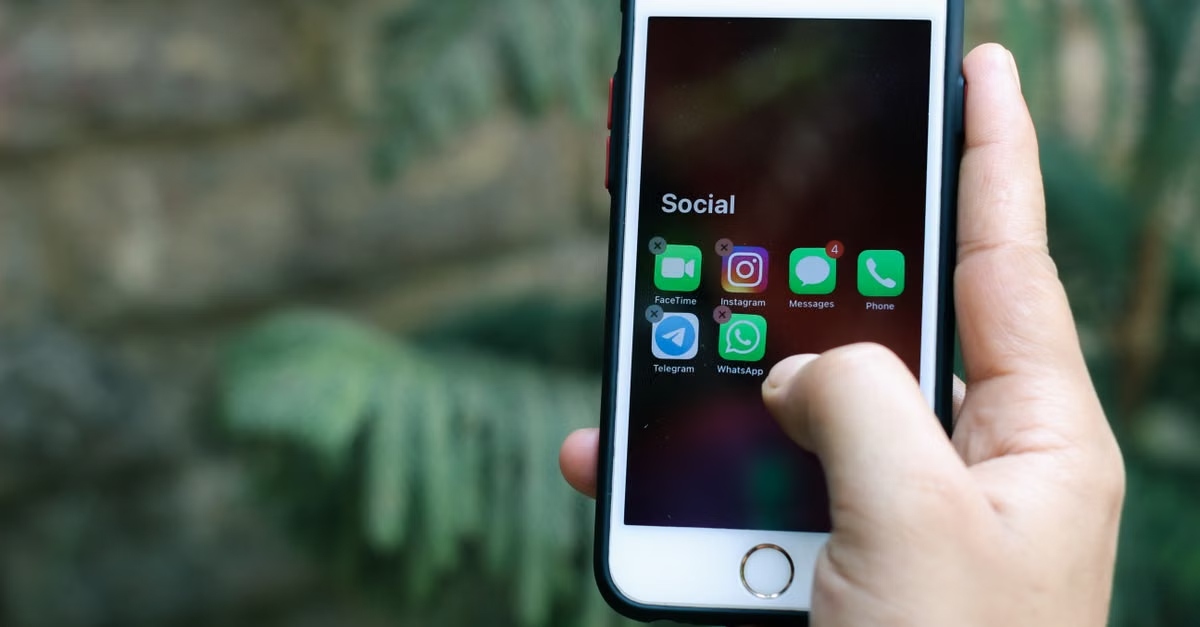
We're all very familiar by now with the fact that GTA 6 will be available to players in New Zealand before the rest of us. We're not bitter about it either, honestly. Not a bit. In any event, you're probably worried about potentially seeing spoilers for the game you've been waiting 13 years for, and we're in the same boat. The trick is to build a, for lack of a better term, spoiler firewall to protect you from seeing anything you don't want to see on your perfectly-curated social media feeds.
There are different ways to do this depending on the platform in question, so we've curated a step-by-step guide for every social media outlet we can think of, as well as some more general tips to avoid GTA 6 spoilers this week. We'd recommend setting this up as soon as possible, since the New Zealand release is now under 24 hours away.
In This Article- Muted Keywords
- X
- YouTube
- Discord
- TikTok
- Bluesky
- Threads
- Twitch
- Google Discover and your browser
- Additional measures
Muted Keywords
You'll want to mute a broad collection of relevant terms across various platforms. You can copy this list and work through the platforms that support keyword filtering:
- GTA 6
- GTA 6
- GTA VI
- GTAVI
- Grand Theft Auto 6
- Grand Theft Auto VI
- GTA 6 spoilers
- GTA 6 ending
- GTA 6 ending explained
- GTA 6 final mission
- GTA 6 death
- GTA 6 story
- GTA 6 campaign
- GTA 6 walkthrough
- GTA 6 gameplay
- GTA 6 leak
- GTA 6 datamine
- GTA 6 cutscene
- GTA 6 secret ending
- Jason Duval
- Lucia Caminos
- Vice City
- Leonida
- Rockstar Games
- Jason
- Lucia
The above list is deliberately aggressive, intending to mute any relevant mentions of the game. It might also hide legitimate gaming news, so use those terms during your own spoiler-protection window--whether you just want to avoid spoilers for the first few hours of your own playthrough, or you'd rather keep everything hidden until you've finished the game yourself.
X
X has the better spoiler protection system, because you can mute words and phrases from your timeline and your notifications. To set it up:
- Open X
- Go to Settings and Privacy
- Select Privacy and Safety
- Select Mute and Block
- Select Muted Words
- Press the + button to add a word
- Add each keyword from the list above individually
- Set each word to apply to Home timeline and Notifications.
- Set the duration you require.
For the notification settings, you'll also want to choose "From anyone" rather than just people you don't follow. X will also let you mute specific usernames and hashtags, so you could add things like the official Rockstar Games account, or any reputable leakers or early spoiler posters you're aware of.
If you want to be extra cautious, you can also select the "Content you see" option in the Privacy and Safety menu to disable any personalized content or interests options that might be encouraging GTA-related recommendations.
You can also switch your timeline to "Following" instead of "For You" to only see posts from accounts you follow. It's important to note that X's muted words don't filter search results, and notifications for accounts that you've deliberately turned post notifications on for will bypass the filter.
Facebook did previously have a feature called Keyword Snooze, but it doesn't exist any more. There's no universal keyword-filtering option in Facebook right now. However, you can curate your feed yourself:
- Open Facebook
- Tap your profile picture or open the menu
- Go to Settings and Privacy, then Settings
- Find Feed or Feed preferences depending on the device you're using
- Open Unfollow and review any pages or people that you no longer want to appear
- Choose Snooze to temporarily snooze gaming groups or pages that regularly share GTA content
- Use Hide Post on any posts you see in your feed if you encounter GTA 6 spoilers or suspicious content to encourage Facebook to hide similar posts
- If you see a suggested post related to GTA 6, use the three-dot menu to hide or show less posts like this.
We'd also recommend temporarily leaving or snoozing any groups dedicated to GTA 6, especially fan communities where people may share late-game footage or screenshots without warning.
YouTube
YouTube is one of the biggest risks, because a single thumbnail could ruin the end of the story for you. Unfortunately, YouTube also doesn't offer a keyword filter for video titles and thumbnails. Instead, you'll have to encourage your algorithm away from serving GTA 6 content. To do so:
- Open YouTube
- Go to Settings - Manage all history
- Find your YouTube History controls
- Pause your YouTube watch history
- Pause your YouTube search history
- Return to the Home feed
- If GTA 6 videos appear, click the three dots next to them
- Select Not Interested
- Where relevant, press "Don't recommend channel" for accounts publishing a lot of GTA 6 content.
Deleting and pausing watch history can prevent recommendations based on that activity. However, be aware that disabling your watch history can significantly change your Home feed.
To be extra cautious, turn off Autoplay, and avoid opening any GTA 6 videos, even if the thumbnail appears harmless. Don't search for GTA 6 while you're signed into your main YouTube account, and steer clear of the Shorts feed where spoilers will appear with no warning. Consider using a separate browser profile for non-gaming YouTube viewing if you want to be really sure.
Discord
Discord is a pretty dangerous place to be if you want to avoid GTA 6 spoilers. There's no keyword filter, and people often post screenshots, clips, and leaks directly into conversations. However, you can mute servers temporarily so that you're not notified about new messages:
- Open Discord
- Go through your server list and identify any relevant to GTA 6, Rockstar, or gaming in general
- Right-click the servers and select Mute Server, then choose "Until I turn it back on"
- Then select Notification Settings and disable message notifications including role mentions
You can also use Discord's block feature for known spoiler accounts. If someone has a history of posting unmarked leaks or spoilers, block them before launch. This will hide their messages in your feed, although you can still manually click to read them.
If you run your own Discord server, you can configure AutoMod to block messages containing specific keywords. However, that only protects servers that you moderate and not your entire personal account across all of Discord.
TikTok
TikTok can filter videos based on specific keywords. GTA 6 spoilers will inevitably find their way into clips, memes, and reaction videos, so it's essential to set up filtering before the game releases in New Zealand if you want to be able to continue to doom scroll without spoilers:
- Open TikTok
- Go to your Profile
- Tap the three-line menu in the top-right corner
- Select Settings and privacy
- Select Content preferences
- Select Filter video keywords
- Tap Add keywords
- Add the terms from the list above
- If the option shows up for you, depending on the device you're accessing TikTok on, select the For You and Following feeds
- Enable filtering of variations
You can also manage the topics that TikTok recommends to you:
- Go to Content preferences and select Manage topics
- Reduce your interest in gaming-related topics for the duration of the spoiler window
- Use Not interested on any GTA 6 videos that slip through
- Don't watch, like, share, or comment on GTA 6 videos on the platform
Reddit is really tricky to avoid spoilers on, because unrelated subreddits could begin discussing the game. The best approach is to mute the communities most likely to contain spoilers, or just stay off the app. If you still want to be able to browse Reddit, we'd recommend temporarily muting the following subreddits:
- r/GTA6
- r/GTA
- r/GrandTheftAutoV
- r/GamingLeaksAnd Rumours
- r/Rockstar
- r/PS5
- r/XboxSeriesX
- r/gaming
Sorry guys. It's not you; it's us. Sort of.
To mute a subreddit:
- Open Reddit
- Visit the subreddit you want to avoid
- Tap the three-dot menu
- Select Mute r/[subreddit name]
- Confirm
You can manage your muted communities through the safety section of your account settings. Reddit's muting feature will remove those communities from your Home and Popular feeds, recommendations, and notifications. Reddit doesn't offer keyword filtering, so community muting is your best option.
Instagram has a Hidden Words feature that is very useful, but it does have its limitations. It focuses on filtering comments and message requests instead of removing spoiler content from your main feed, but it's still worth setting up:
- Open Instagram
- Go to your Profile
- Tap the three-line menu
- Select Hidden Words in Settings
- Enable the relevant comment and message request filtering options
- Find Manage custom words and phrases
- Add the keywords from the list above
This will help to prevent you seeing spoilers in comments or messages.
For your actual feed, you'll have to customize it a little. You can unfollow or mute GTA-focused accounts temporarily, and mute stories or notes from accounts that regularly share gaming content. You can use the three-dot menu on any suggested posts to tell Instagram you're not interested, too.
Try to avoid the Explore and Reels sections, since spoilers could be posted there without warning. Also consider restricting notifications from gaming accounts.
Bluesky
Bluesky has moderation controls that are worth checking, including muted words. Similar to X, you can prevent the keywords from appearing in your feeds:
- Open Bluesky
- Go to Settings
- Select Moderation
- Find Muted words and tags
- Add words from the list above
- Check your settings to ensure muted content is hidden instead of just flagged
- Review your muted accounts and lists
Consider temporarily switching away from any gaming-related custom feeds you've got set up.
Threads
Don't forget about Meta's other timeline--Threads can sometimes suggest posts to you in Instagram, so take advantage of its Hidden Words feature.
- Open Threads
- Go to your profile
- Tap the two-line menu
- Find Hidden Words
- Add custom words from the list above
- Check the available filtering options and customize them to your preference
You can also switch feeds so you only see posts from people you follow, unfollow gaming accounts temporarily, hide posts when GTA 6 content appears, and avoid Threads overall during the launch window. Don't assume that filtering words will catch images or videos without matching text.
Twitch
We're not entirely sure why you might browse Twitch during the launch window for GTA 6 if you're trying to avoid spoilers, but regardless, there are still measures you can take to steer clear of content you haven't seen yet:
- Temporarily unfollow GTA and Rockstar-focused streamers
- Avoid the Browse - Games section
- Don't visit the GTA 6 game category
- Turn off notifications from streamers
- Avoid recommended streams on the homepage
- Check the category of the streamer you want to watch to make sure it's not GTA-focused
- Don't browse Twitch Clips
Twitch doesn't have a keyword filter, so using common sense is your only option here.
Google Discover and your browser
This one could be easily overlooked. Google Discover, news recommendations, and browser start pages could serve GTA 6 headlines even if you haven't directly searched for the game. To prevent it:
- Open the Google app on your phone
- Find any GTA 6-related recommendations
- Tap the three-dot menu
- Select Not interested in this story, or hide the source
- Repeat for GTA-related recommendations
Additional measures
Because we're being thorough here, there are other measures you can take to avoid spoilers. Make sure to disable push notifications from gaming news accounts, Rockstar fan accounts, gaming subreddits, and YouTube channels. Notifications could bypass some of your custom feed protections.
You can also use a separate or incognito profile to browse, depending on your internet browser. There'll be no GTA-related search or viewing history, so it'll help to prevent recommendation algorithms from serving content you're trying to avoid.
Disable autoplay wherever you can, especially on YouTube, Facebook, and Reddit. What might seem like an innocent video could serve an endgame spoiler that you've been trying to avoid.
Tell friends and gaming groups that you're avoiding spoilers. Ask them not to send screenshots, clips, memes, or even hints about what happens in the story.
Keep your usual non-GTA websites accessible with bookmarks so you aren't tempted to visit gaming news homepages. You can still use the internet without finding out anything about GTA--my mum seems to manage it daily.
You can keep these aggressive filters in place until you've completed the main story to be safe. People will continue sharing endings, character outcomes, secret missions, and Easter eggs for weeks after launch. As one of GameSpot's guides editors, I promise we'll be really careful about hiding anything that could be considered a potential spoiler, so you're safe to come here if you're stumped on something or just want some more tips. Bookmark our GTA 6 guides hub so you don't need to rely on Google search results.
You don't need to disappear from the internet completely, there are ways to make your normal internet experience less likely to give you screenshots or spoilers of things you haven't seen yet. Don't listen to anyone who smirks and says, "Just stay off the internet."