Developer’s guide to implementing MCP apps in Gemini
Enterprise assistants still respond mostly in text. However, that can break down for visual, multi-step work, where every adjustment costs another slow chat turn.
MCP Apps (SEP-1865) solves this. This open Model Context Protocol (MCP) extension pairs a tool with a live UI. In Gemini Enterprise, that UI renders directly in the chat flow inside a sandboxed iframe, and can expand to fullscreen or a side panel. Edits run locally while the workspace and assistant stay synchronized.
You also avoid rebuilding core foundations: Gemini provides workforce sign-in, governed data access, and the Default Assistant, while you host your MCP server on a private Cloud Run service.
Why we need MCP Apps
Enterprise assistants have evolved through three generations:
-
Generation 1 (Text chatbots): Returns static markdown with no interactive controls.
-
Generation 2 (Standard MCP tools): Invokes live APIs, but outputs static text. Every change requires another model turn.
-
Generation 3 (Interactive MCP Apps): Pairs each tool with a live workspace. Adjustments happen in the widget without a model turn, while the assistant stays in sync.
Building MCP Apps in Gemini delivers six benefits:
-
Responsive user experience: Single-click actions execute directly in the panel without round-tripping through the chat.
-
Purpose-built workflows: Deliver visual redaction views for legal review, 3D viewers for CAD, or sensitivity models for finance.
-
Enterprise security: Workforce OAuth sign-in, private Cloud Run ingress, and a sandboxed iframe protect every layer.
-
Human-in-the-loop governance: Experts inspect and approve high-stakes actions before execution.
-
Open standard: Portable across compatible hosts, with automatic text fallback.
-
Broad connectivity: Connect to BigQuery, Agent Platform, Cloud Storage, or internal ERP and CRM systems.
High-level architecture
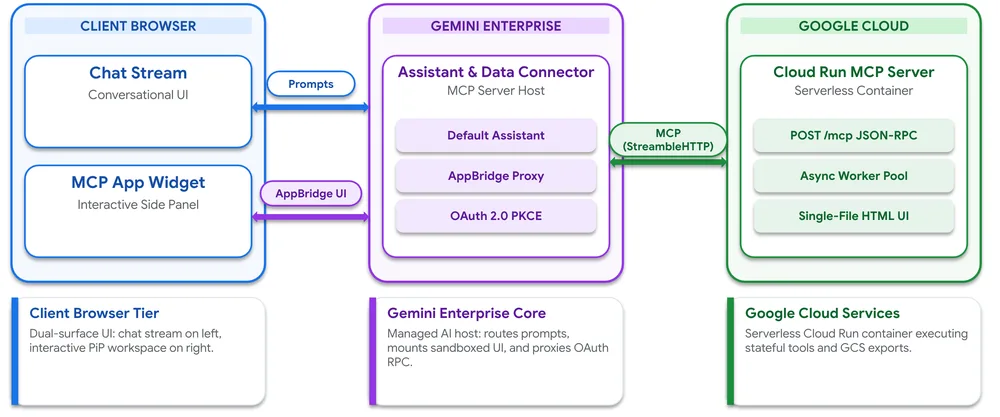
Three decoupled tiers work together:
-
Client browser: Shows the chat alongside the MCP App widget in the side panel.
-
Gemini Enterprise: The default assistant calls tools, the AppBridge proxy relays widget messages, and the connector manages OAuth.
-
Google Cloud (your project): You deploy and host the MCP server on Cloud Run, which exposes one JSON-RPC endpoint (/mcp), runs background jobs, and serves the single-file HTML widget.
Each tier talks only to its neighbor, letting Gemini Enterprise enforce security and routing.
Authentication with two independent layers
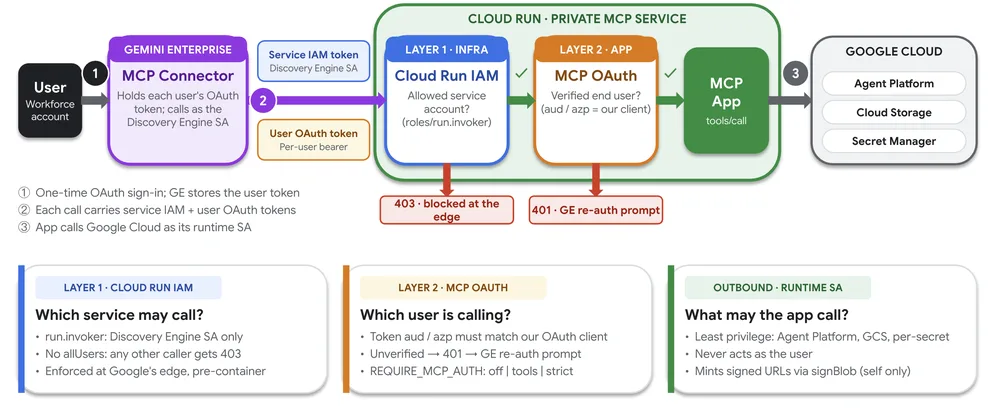
Each user signs in through OAuth 2.0. On every call, Gemini Enterprise sends its service agent token alongside the user's OAuth token:
-
Layer 1 (Cloud Run IAM): Enforced at Google's edge, this answers "which service may call?" Public access is disabled; unauthorized callers receive HTTP 403.
-
Layer 2 (In-App OAuth): Enforced inside the application, this answers "which user is calling?" Failed verification returns HTTP 401, prompting the user to sign in again.
Cloud Run IAM cannot distinguish end users, so both layers are required. Outbound calls use a least-privilege service account.
Build, deploy on Google Cloud, and register in Gemini Enterprise
First, build your custom MCP server (exposing POST /mcp and a bundled ui:// HTML widget) using the MCP Apps SDK, or use Google Antigravity to scaffold and deploy your MCP App with this starter prompt:
-
Build an MCP App for Gemini Enterprise using the create-mcp-app skill (https://github.com/modelcontextprotocol/ext-apps/tree/main/plugins/mcp-apps/skills/create-mcp-app).
-
Workflow: [describe your input data, side-panel UI controls, and approval or export actions].
-
Generate a single-file HTML widget, a Streamable HTTP backend (POST /mcp) with <2s async tool responses and get_app_state polling, and Cloud Run deployment commands (--no-allow-unauthenticated, --no-cpu-throttling, --min-instances=1).
Once your MCP server code is ready, deploy it to Cloud Run and connect it to Gemini Enterprise:
-
Step 1: Enable APIs for Cloud Run, Discovery Engine, Agent Platform, and Organization Policy.
-
Step 2: Deploy your MCP server container to Cloud Run from source
(gcloud run deploy <service> --source .) with--no-allow-unauthenticated, --no-cpu-throttlingso background work does not freeze between polls, and --min-instances=1. -
Step 3: Grant the invoker role (
roles/run.invoker) to your Discovery Engine service agent (Layer 1). - Step 4: Create an OAuth 2.0 Web Client with redirect URI
https://vertexaisearch.cloud.google.com/oauth-redirect(Layer 2). -
Step 5: Override the
discoveryengine.managed.disableCustomMcpServerConnectorconstraint and complete the Before you begin prerequisites(roles/discoveryengine.editorfor the admin, allowedEgressFqdns for your server and OAuth hosts, andcustom_mcpinallowedDataSourcesif enforced). Then, in the Google Cloud Console under Gemini Enterprise > Data stores > Create data store, select Custom MCP Server and register the connector:
Configuration field
Value
MCP Server URL
https://<your-cloud-run-service>.run.app/mcp
Authorization URL
https://accounts.google.com/o/oauth2/v2/auth
Token URL
https://oauth2.googleapis.com/token
Client ID and Secret
Your Web OAuth 2.0 Client ID and Secret
Scopes
openid email profile
Enable PKCE Support
Checked (recommended)
Use HTTP Basic Auth
Unchecked (avoids invalid_client errors)
-
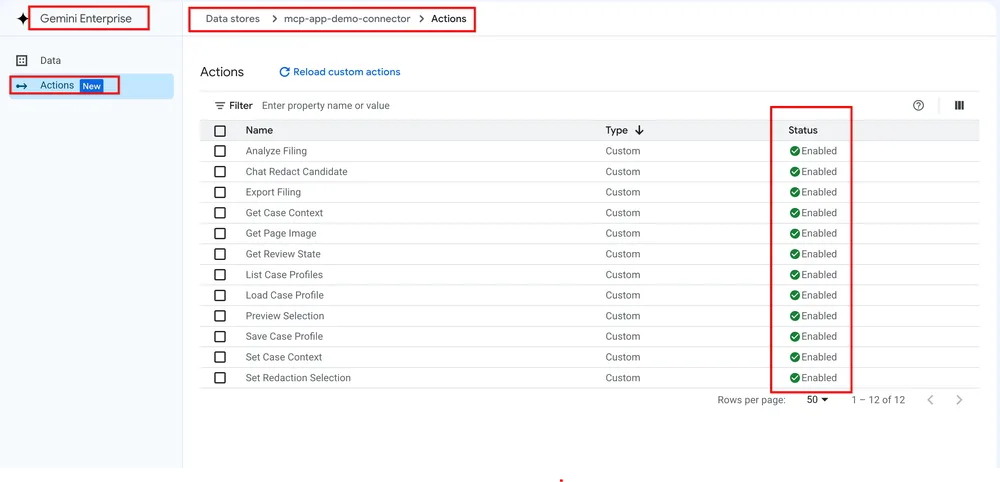
Step 6: Enable actions on your data store. Gemini Enterprise imports your MCP server's tools as actions and disables them by default. In the Cloud Console, open Gemini Enterprise > Data stores > [Your MCP Data Store] > Actions, click Reload custom actions (which calls
tools/liston your server), select your model-visible tools, and click Enable actions.
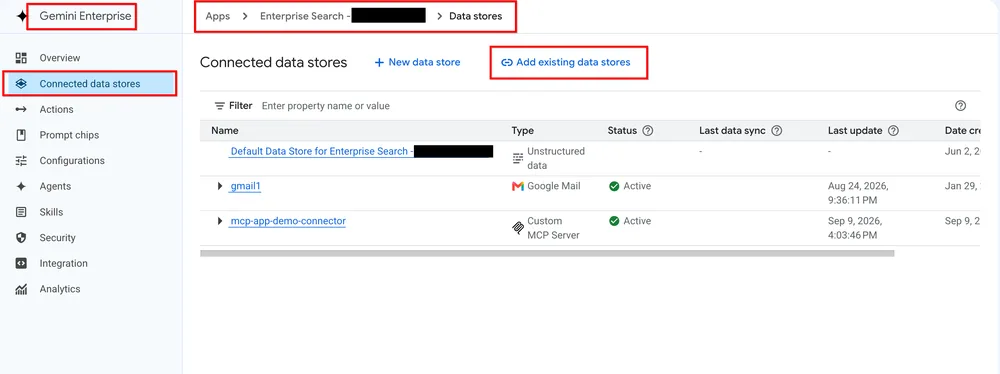
- Step 7: Connect the data store to your app. Open Gemini Enterprise > Apps > [Your App] > Connected data stores > Add existing data stores, and select your MCP data store. Connecting it as a data store gives the built-in Default Assistant access to your MCP tools and UI widget directly in main chat ( do not use "Add Agent," which is for external sub-agents rather than MCP data stores).
Build your own
An MCP App pairs backend tools with a live workspace in Gemini Enterprise. You do not build a chat frontend or identity pipeline; you deploy one Cloud Run container and attach it as a Data Store, making Gemini Enterprise where enterprise work gets done.
-
Try Gemini here
-
Co-build with Google Antigravity here
-
Build on Google Cloud: MCP Apps Specification (SEP-1865), Cloud Run, and Google Cloud AI.