Data + AI Anywhere: AlloyDB Omni integration with local models
Open models like Gemma 4 from Google DeepMind are a great option to keep your data local. But how can a local AI model integrate with on-premises data?
AlloyDB Omni, Google’s 100% PostgreSQL-compatible database that runs anywhere, now integrates with locally hosted large language models (LLMs). With AlloyDB Omni, you can build agentic experiences on your own infrastructure and on your own terms. Whether it’s in the cloud, in your datacenter, or even on your laptop, you can have data plus AI anywhere.
Built-in AI for your local environment
AlloyDB Omni is a downloadable, run-anywhere edition of AlloyDB that easily deploys to your own infrastructure, including on-premises. AlloyDB Omni packs powerful, built-in AI, including the same ScaNN indexing technology powering Google Search. When you pair AlloyDB Omni with a model, you can store vector embeddings at scale; search them semantically; and even query the database using natural language. You can use virtually any model you like, whether that’s a frontier Cloud-hosted model like Gemini or a local model. And with locally hosted models you maintain complete control over your data environment.
Connecting to Gemma 4, Qwen3.8, and other local models
You can now connect AlloyDB Omni to local models like Gemma 4 and Qwen3.8. No matter which model you choose, the architecture remains the same.
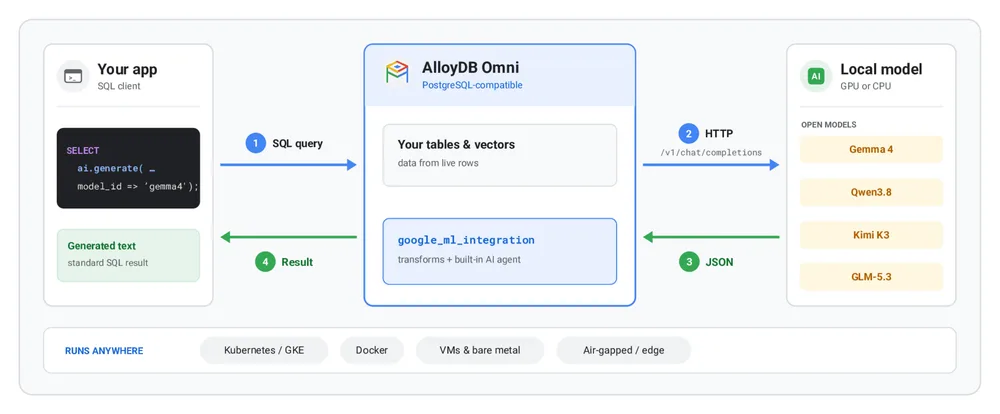
AlloyDB Omni calls a local model server directly from SQL — keeping prompts, data, and responses inside your environment.
This setup enables entirely new use cases for environments that were previously blocked from adopting agentic capabilities. If you operate an air-gapped network or have data locality requirements, you can still build intelligent applications. You can analyze local logs, generate summaries of proprietary internal documents, and power localized chatbots—all while maintaining strict data governance.
-
Keep data on-premises: Because the database and the model sit in the same local environment, your data never crosses the public internet.
-
Reduce latency: Processing inference requests locally minimizes network transit time.
-
Query directly via SQL: Your standard database queries can invoke machine learning functions that process data locally. Like this:
Next, you’ll see how to run queries like this yourself, step by step.
Get started
You can test this integration on your own machines today. Using a Kubernetes environment we will show you how to deploy and integrate AlloyDB Omni and a local open model.
Step 0: Before you begin
In this example, we will use Google Kubernetes Engine (GKE) to host the AlloyDB Omni database and local model. GKE gives us a standardized, reproducible environment but you can use the same setup on-prem or almost anywhere.
We will assume you have already setup:
-
A GKE cluster, and
Step 1: Deploy the AlloyDB Omni Kubernetes Operator
We will use the AlloyDB Omni Kubernetes operator to set up our AlloyDB Omni database. The Operator makes deploying and maintaining AlloyDB Omni a breeze.
code_block <ListValue: [StructValue([('code', "helm install \\\r\n cert-manager oci://quay.io/jetstack/charts/cert-manager \\\r\n --version v1.21.3 \\\r\n --namespace cert-manager \\\r\n --create-namespace \\\r\n --set crds.enabled=true \\\r\n --set global.leaderElection.namespace=cert-manager\r\n\r\nhelm install alloydbomni-operator oci://gcr.io/alloydb-omni/alloydbomni-operator \\\r\n--version 1.9.0 \\\r\n--create-namespace \\\r\n--namespace alloydb-omni-system \\\r\n$(helm install --help | grep -q -- '--rollback-on-failure' && echo '--rollback-on-failure' || echo '--atomic') \\\r\n--timeout 5m"), ('language', ''), ('caption', <wagtail.rich_text.RichText object at 0x7f379639dfd0>)])]>Step 2: Create your AlloyDB Omni database
Don’t forget to enable the googleMLExtension.
Step 3: Deploy your AI model
We will use Ollama to help us deploy our model.
In this example we deploy Gemma 4 from Google DeepMind. Or, you can modify this command to deploy Qwen3.8 – just change a few lines as noted in the comments.
code_block <ListValue: [StructValue([('code', 'cat << \'EOF\' | kubectl apply -f -\r\napiVersion: apps/v1\r\nkind: Deployment\r\nmetadata:\r\n name: ollama\r\n namespace: ai-demo\r\nspec:\r\n replicas: 1\r\n selector:\r\n matchLabels:\r\n app: ollama\r\n template:\r\n metadata:\r\n labels:\r\n app: ollama\r\n spec:\r\n containers:\r\n - name: ollama\r\n image: ollama/ollama:latest\r\n ports:\r\n - containerPort: 11434\r\n env:\r\n - name: OLLAMA_KEEP_ALIVE\r\n value: "-1" # keep the model in RAM\r\n - name: OLLAMA_LOAD_TIMEOUT\r\n value: "20m"\r\n resources:\r\n requests:\r\n cpu: "4"\r\n memory: "16Gi" # for Qwen 3.8: 24Gi\r\n volumeMounts:\r\n - name: models\r\n mountPath: /root/.ollama\r\n lifecycle:\r\n postStart:\r\n exec:\r\n command: ["/bin/sh", "-c", "(sleep 5 && ollama pull gemma4:12b) >/dev/null 2>&1 &"]\r\n # For Qwen 3.8, comment out the line above and use this one:\r\n # command: ["/bin/sh", "-c", "(sleep 5 && ollama pull qwen3.8) >/dev/null 2>&1 &"]\r\n volumes:\r\n - name: models\r\n ephemeral:\r\n volumeClaimTemplate:\r\n spec:\r\n accessModes: ["ReadWriteOnce"]\r\n resources:\r\n requests:\r\n storage: 30Gi\r\n---\r\napiVersion: v1\r\nkind: Service\r\nmetadata:\r\n name: ollama-service\r\n namespace: ai-demo\r\nspec:\r\n type: ClusterIP\r\n ports:\r\n - port: 11434\r\n targetPort: 11434\r\n selector:\r\n app: ollama\r\nEOF'), ('language', ''), ('caption', <wagtail.rich_text.RichText object at 0x7f379639eb90>)])]>Step 4: Register the model with AlloyDB Omni
Connect to your database.
code_block <ListValue: [StructValue([('code', 'kubectl exec -it -n ai-demo $(kubectl get pod -n ai-demo -l alloydbomni.internal.dbadmin.goog/task-type=database -o jsonpath=\'{.items[0].metadata.name}\') -c database -- env PGPASSWORD="VeryStrongPassword" psql -h 127.0.0.1 -U postgres'), ('language', ''), ('caption', <wagtail.rich_text.RichText object at 0x7f379639ce50>)])]>Note: If you receive a connection error, you might need to wait a moment for your database to provision.
Now you should be connected to your AlloyDB Omni database with the psql client. Next, run the following SQL script to register your local model.
Note: If you receive a Resource not found error, wait a moment for the model to load.
In addition to registering your model, the above script tells AlloyDB Omni how to interpret the model’s raw output. In this example chain-of-thought (CoT) reasoning is part of the response inside <think></think> tags. We don’t want the CoT, so our output transform function removes it.
Step 5: Try it out!
You can use functions like ai.generate built-in to AlloyDB Omni to connect to your local model – without ever leaving the SQL client!
Make it your own
Try out all the AI features that AlloyDB Omni has to offer! AlloyDB Omni supports fast vector search, built-in AI functions, and more. Give them a try and build something great.